
Guide
How to log in and start the course
This page explains how to log in, open the e-learning course and download your certificate. You log in using a personal link sent by email, also known as a magic link. You do not need a password.
Hide first
My link no longer works. What should I do?
A login link can be used once and is valid for 15 minutes. Go to https://windacademy.linqur.com and request a new link using the email address you registered with.
I have not received an email
Check that you entered the correct email address. Also check your spam or junk folder.
1 Logging in for the first time
As soon as your registration and payment are complete, you will receive an email with a login link. Click the link to open your learning environment. Important: the link can be used once and is valid for 15 minutes from the time the email is sent. Has it expired or already been used? Request a new one as described below.
2 Logging in again
Would you like to continue your course later?
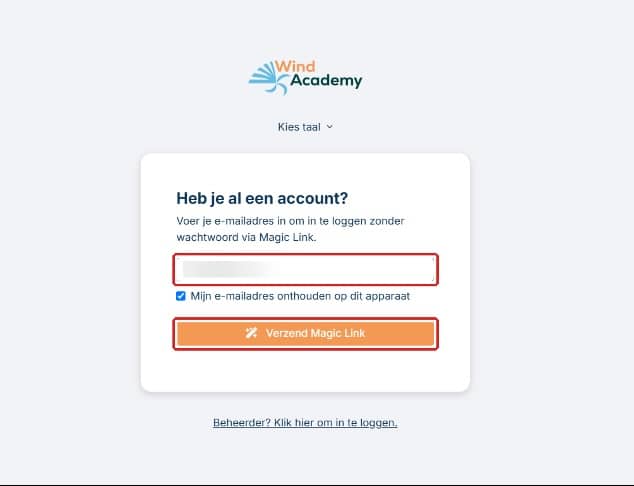
- Go to https://windacademy.linqur.com.
- Enter the email address you used to register for the course.
- Click ‘Verzend Magic Link’.
- Open the email you receive and click the new login link within 15 minutes.
The 15-minute limit applies to using the login link. You do not have to finish the course within 15 minutes.
3 Opening the course
- After logging in, you will see the courses you are registered for.
- Click ‘Start cursus’.
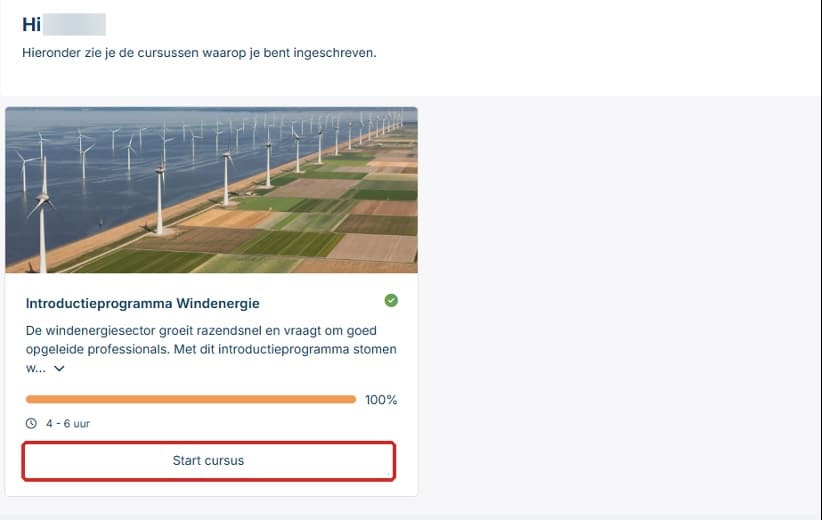
3. Under ‘Inhoud’, click the title of the module you want to take. For example, ‘Module 1 - Windenergie als opkomende trend’. The e-learning course will open.
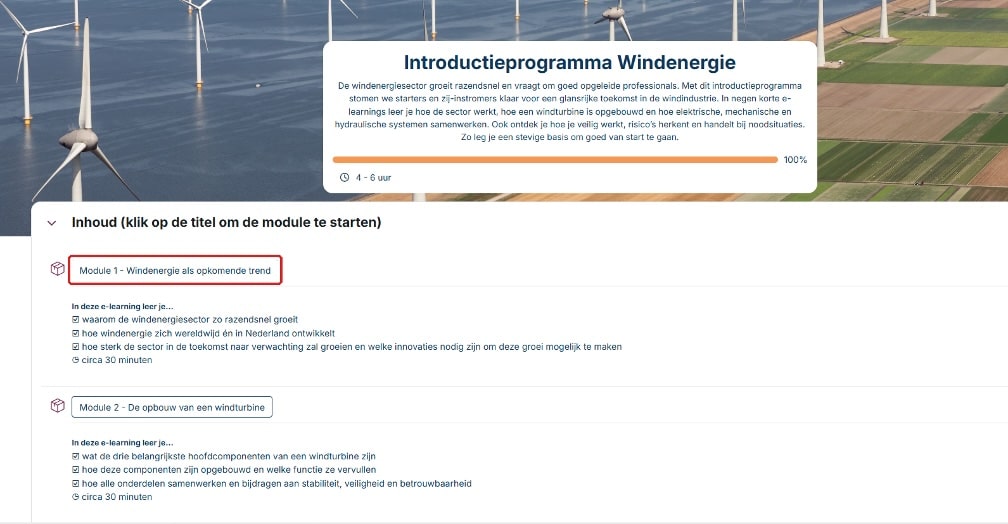
Open each module by clicking its title.
4 Closing a module and continuing
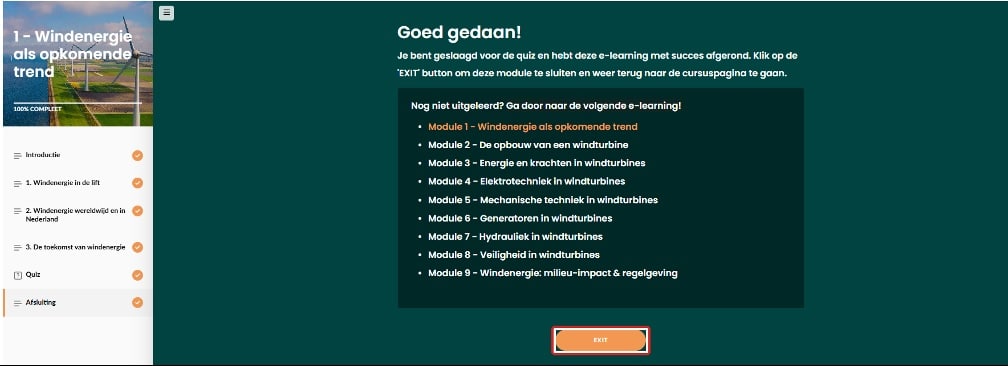
- At the end of each module, you will see an orange button marked ‘EXIT’. Click it to close the module.
- You will return to the course page.
- Click the title of the next module to continue.
5 Downloading your certificate
- Complete all modules of the introduction programme.
- Scroll down the course page.
- Click ‘Klik hier om je certificaat te downloaden’.
